Teacher Guide
Cambridge International AS & A Level Economics (9708) — everything a teacher account gives you: classes, assignments and the gradebook, marking, class analytics, the teacher-only tools and the answer keys.
The site is free for everyone, and students can read all 53 chapters without an account at all. A teacher account adds a layer on top of that: put students into a class, set work, mark written answers, and see how the class is doing.
Start here
Email kingeducates@gmail.com with your name and your school email address, and I will set an account up and reply with your sign-in details. Teacher accounts are free, with no trial period and no expiry.
A note on what this is: I teach Cambridge 9708, and I built this site as a personal resource for myself and my own students. It is free, there is nothing to buy, and I am not selling anything. If it turns out to be useful to your classes too, you are very welcome to it.
Getting a teacher account
Teacher accounts cannot be self-registered. They are granted by hand, which is what keeps the answer keys and your students’ work behind a real teacher. (The official CIE mark schemes are not gated at all — anyone can read those without an account.) In practice it takes one email.
- Email kingeducates@gmail.com with your name and your school email address. A school address is how I tell a teacher from a student; if you do not have one, say where you teach and we will sort it out another way.
- I will create the account on that address and reply with a temporary password. You will be asked to set your own password the first time you sign in, and the temporary one stops working at that point.
- Sign in from the top right of any page. If you already have an account here, say so and I will upgrade that one instead — your password will not change, but sign out and back in once so the new permissions take effect.
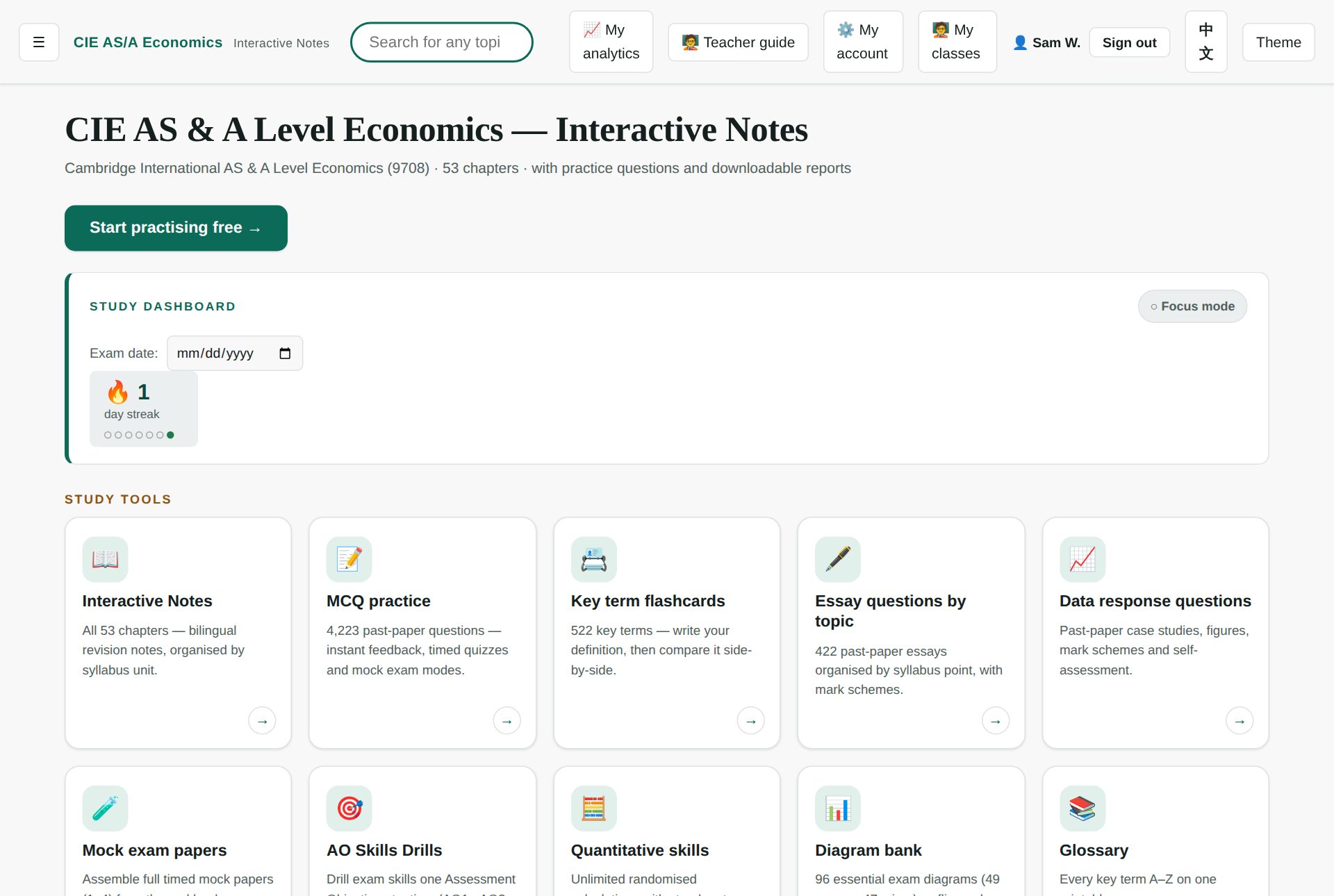
You will know it worked when a My classes link appears in the top menu bar on every page.
There is no trial period and nothing expires. Once the account is a teacher account, it stays one.
What a teacher account adds
| Tool | What it is for |
|---|---|
| Teacher console | Create classes, hand out join codes, manage the roster, and read the class-wide analytics. |
| Assignments & gradebook | Set work from six banks, give it a due date and an optional timer, then mark it and release the marks. |
| Mock exam papers | Assemble a complete Paper 1–4 from the real bank, printable as a question paper and a separate answer key. |
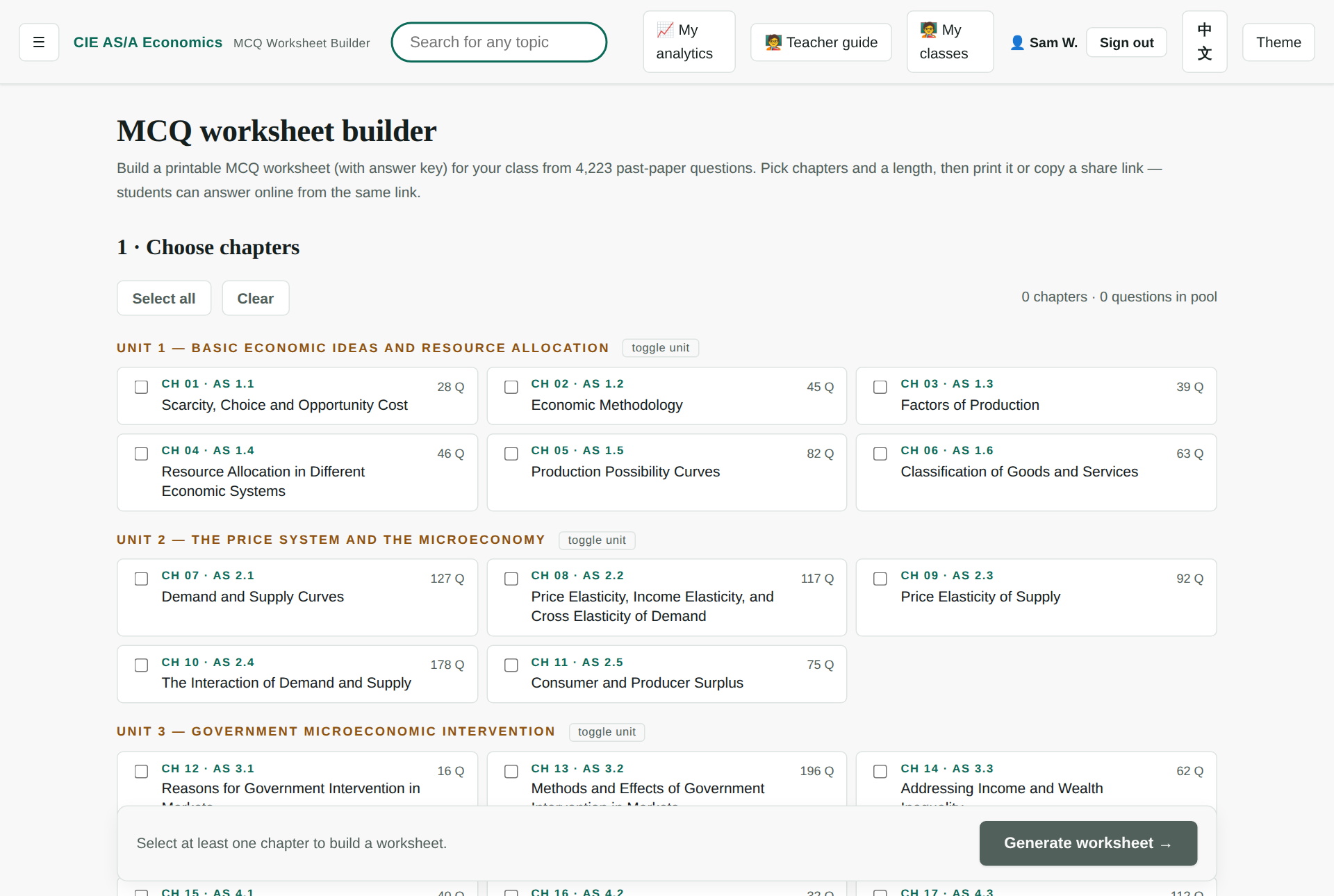
| Worksheet builder | Printable MCQ worksheets and answer keys from the 4,223-question bank, or a shared link the class answers online. |
| AO skills drills | Drill one assessment objective at a time (AO1 knowledge · AO2 analysis · AO3 evaluation), by chapter. |
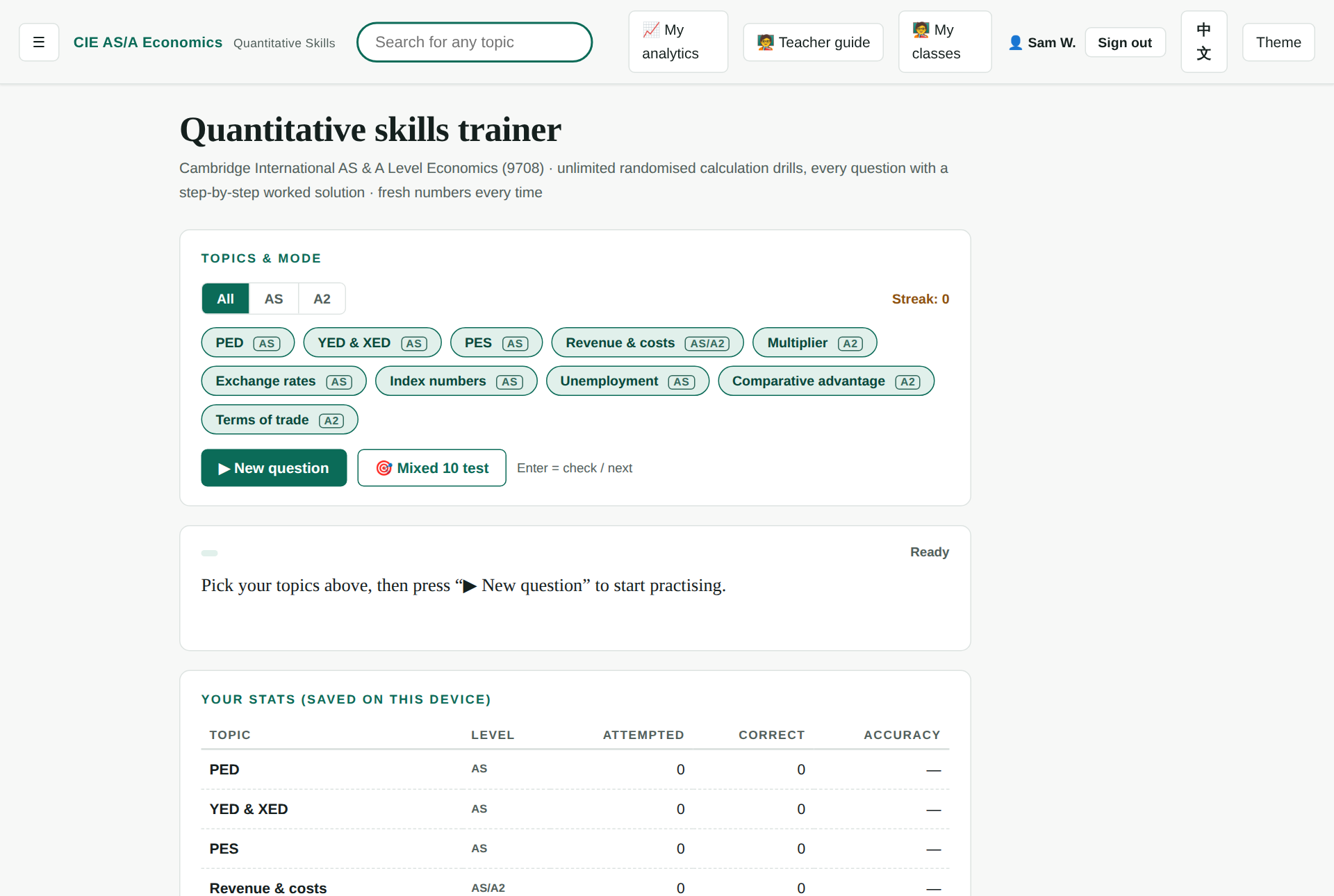
| Quantitative skills | Ten calculation topics with randomised numbers and bilingual step-by-step solutions. |
| Answer keys | Model answers to the guided questions on essays and data-response parts, in the marking view and as a printable sheet. |
| Student work | Read-only access to any enrolled student's essays, data-response answers, AO drills and their analytics page. |
On the home page the teacher tools are visible to everyone but greyed out with a 🔒 chip until a teacher account is signed in.
Your classes and the join code
Everything starts with a class. The class is what decides whose work you can see and who an assignment goes to. Create one in the teacher console — the My classes link in the top menu bar.
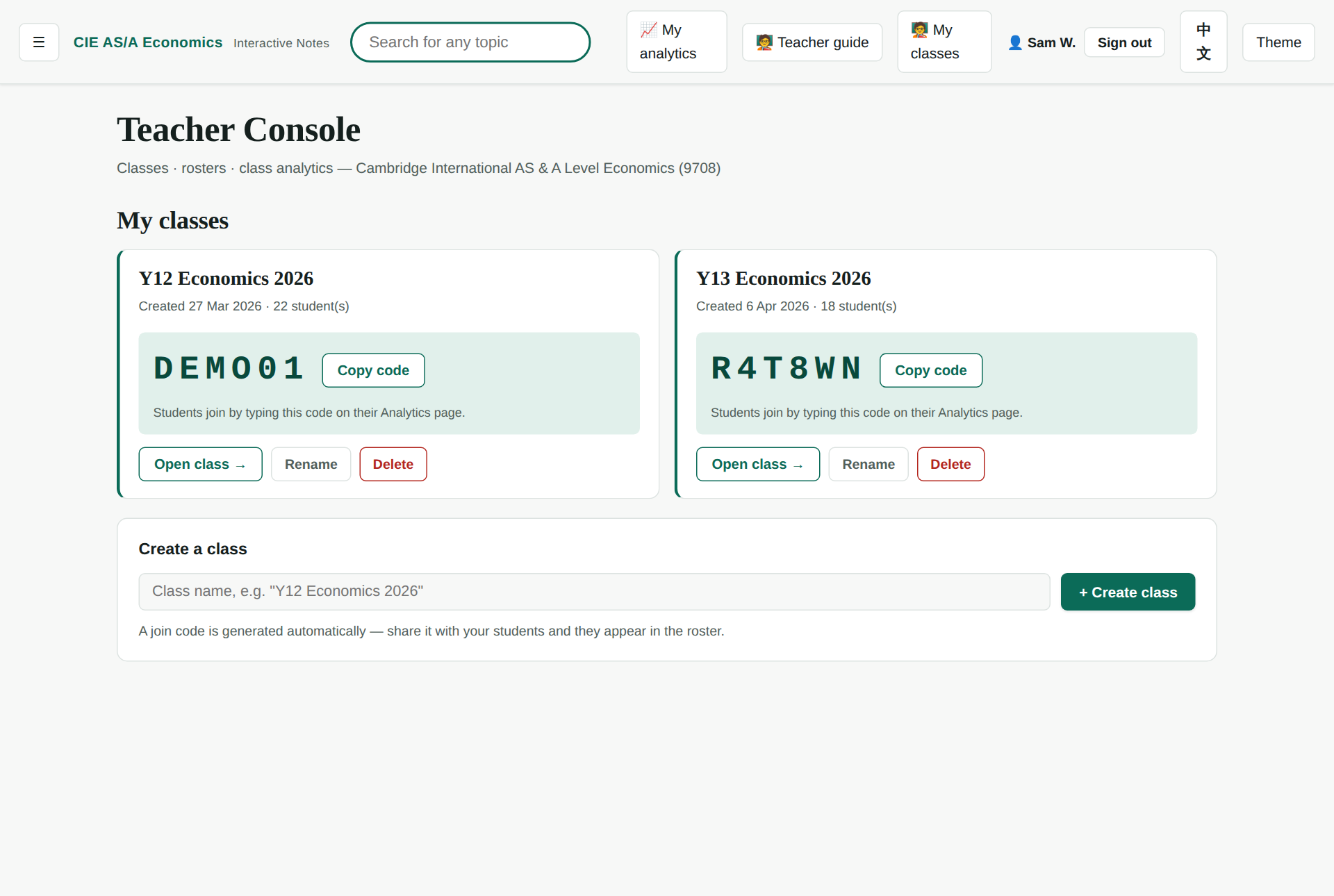
- Give the class a name, such as Y12 Economics 2026. A six-character join code is generated for you.
- Give the code to your students. They enter it on their own My analytics page — you never have to add students by hand.
- If the code leaks, New code regenerates it. Students who have already joined are unaffected.
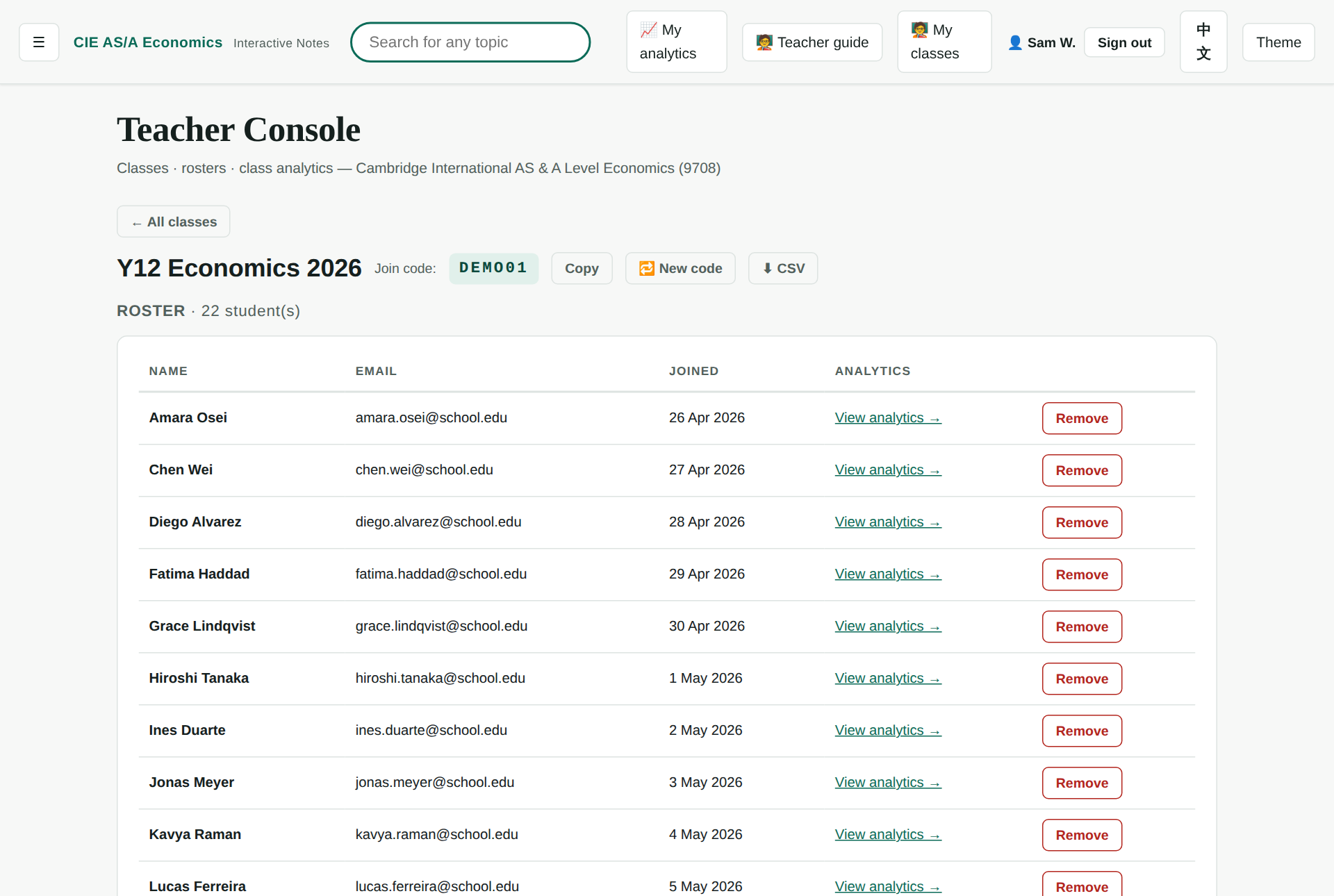
The roster shows each student's name, email and join date. Every row links straight to that student's analytics, and the whole roster exports as CSV.
Setting work
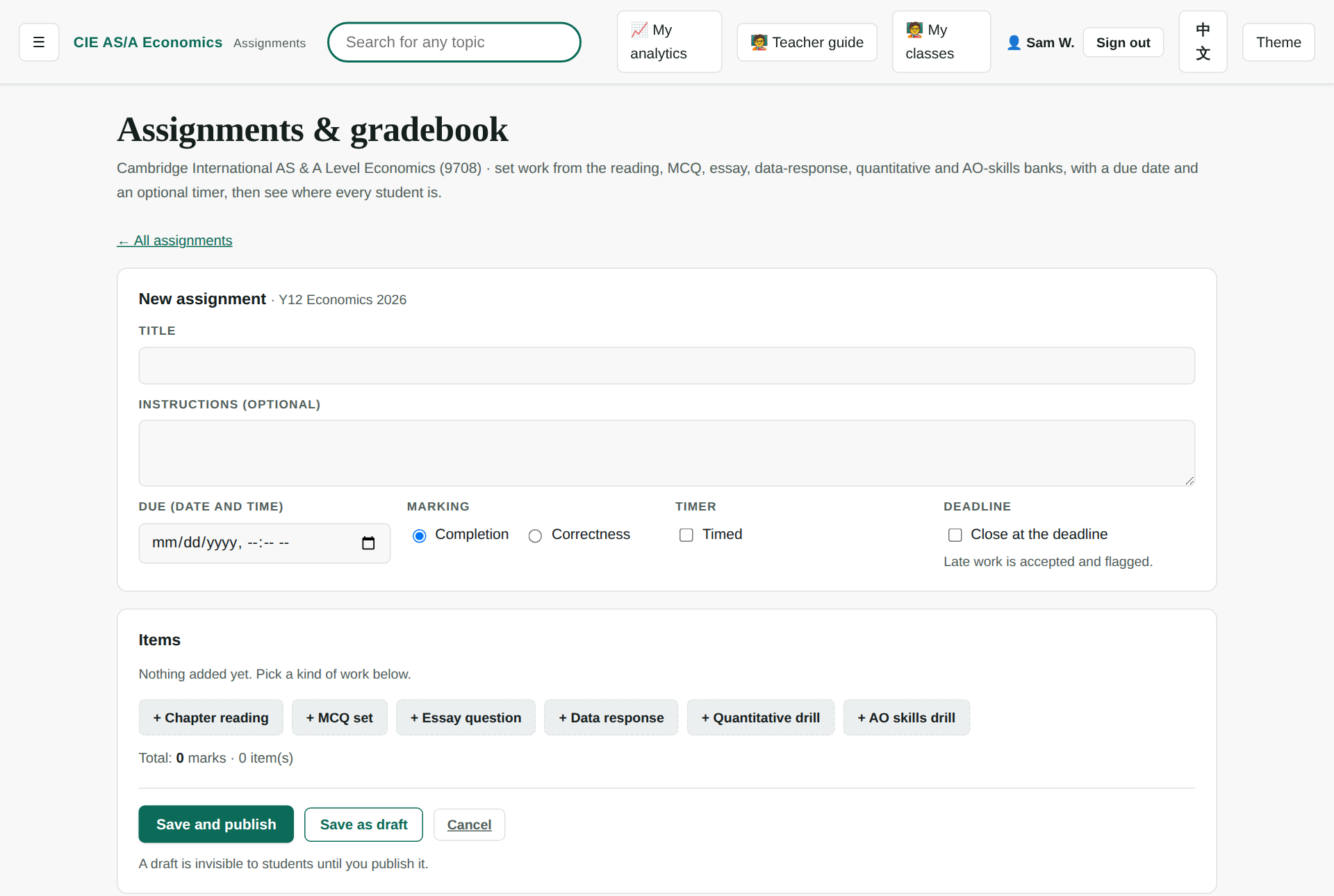
Assignments are built on the gradebook page — Open gradebook from the assignments panel in the teacher console. One assignment can hold up to 200 items, and the six kinds can be mixed freely.
| Item kind | What you pick |
|---|---|
| Chapter reading | A chapter, and which of its sections to read — or the whole chapter. Students hand nothing in. A section counts itself as done once they reach the end of it and try the questions inside it, and you see that as it happens. |
| MCQ set | Chapters (grouped by unit) and a question count. Each student can get their own draw, everyone can get the same questions, or you can hand-pick them. |
| Essay question | One of the 422 past-paper essay questions, found with the search box. |
| Data response | One of the 664 past-paper data-response parts. |
| Quantitative drill | A topic and a count; the numbers can be fresh per student or the same for everyone. |
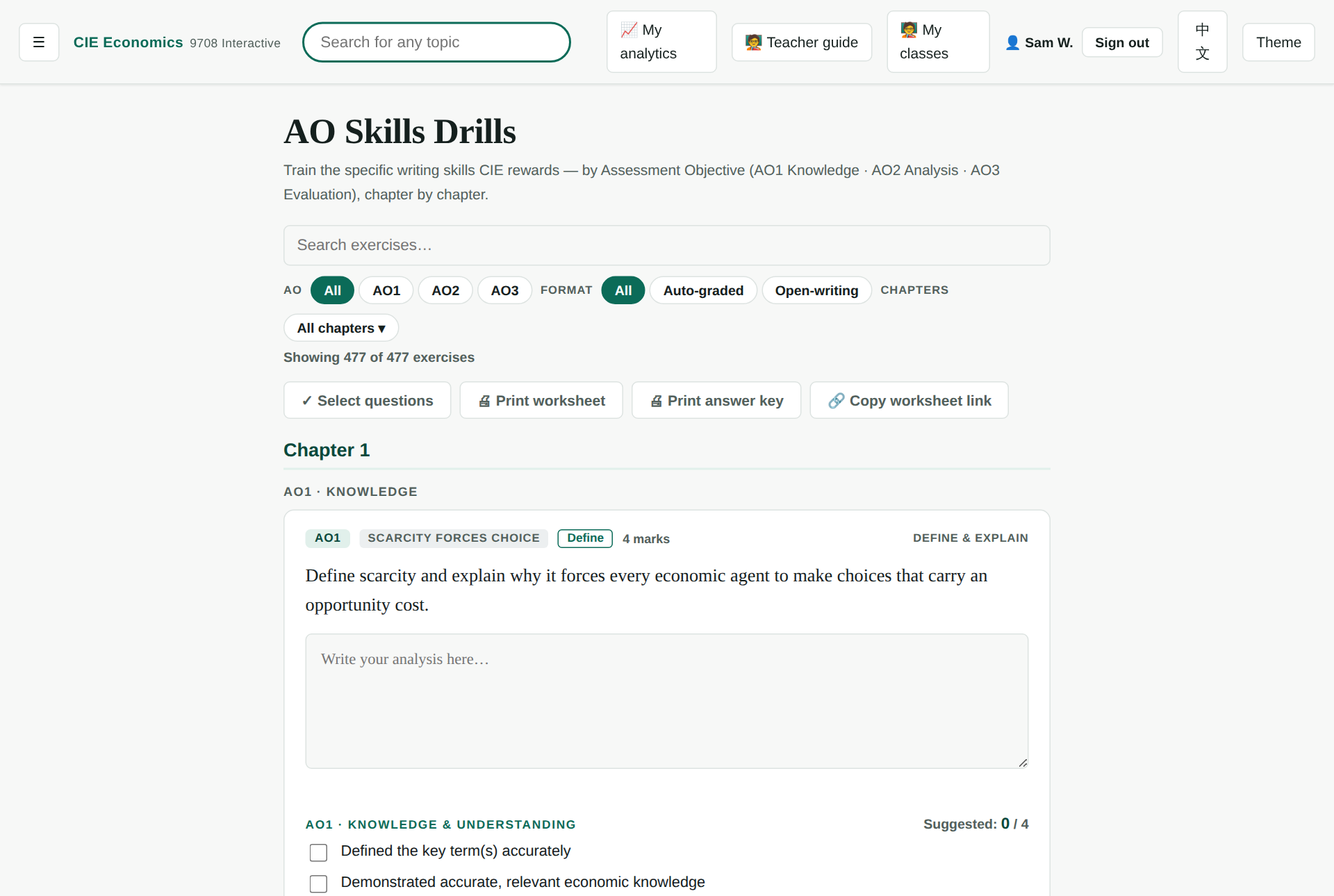
| AO skills drill | One of the 477 single-objective drills. |
Each assignment also carries a due date and time, a marking basis (completion or correctness), an optional time limit, and a choice about the deadline: close at the deadline means nobody can start or answer after it, otherwise late work is accepted and flagged. A timed assignment cannot contain a chapter reading — the clock cannot govern a page the player does not host, so the builder refuses the pair. Set the reading as its own assignment if you want both.
Drafts and publishing
Use Save as draft to build an assignment without showing it to anyone — a draft is invisible to students until you publish it. Save and publish when you are ready.
Students see published assignments on their own My assignments page. The player opens on an explicit Start screen, so tapping the link to look at a timed assignment does not start the clock.
Seeing where everyone is
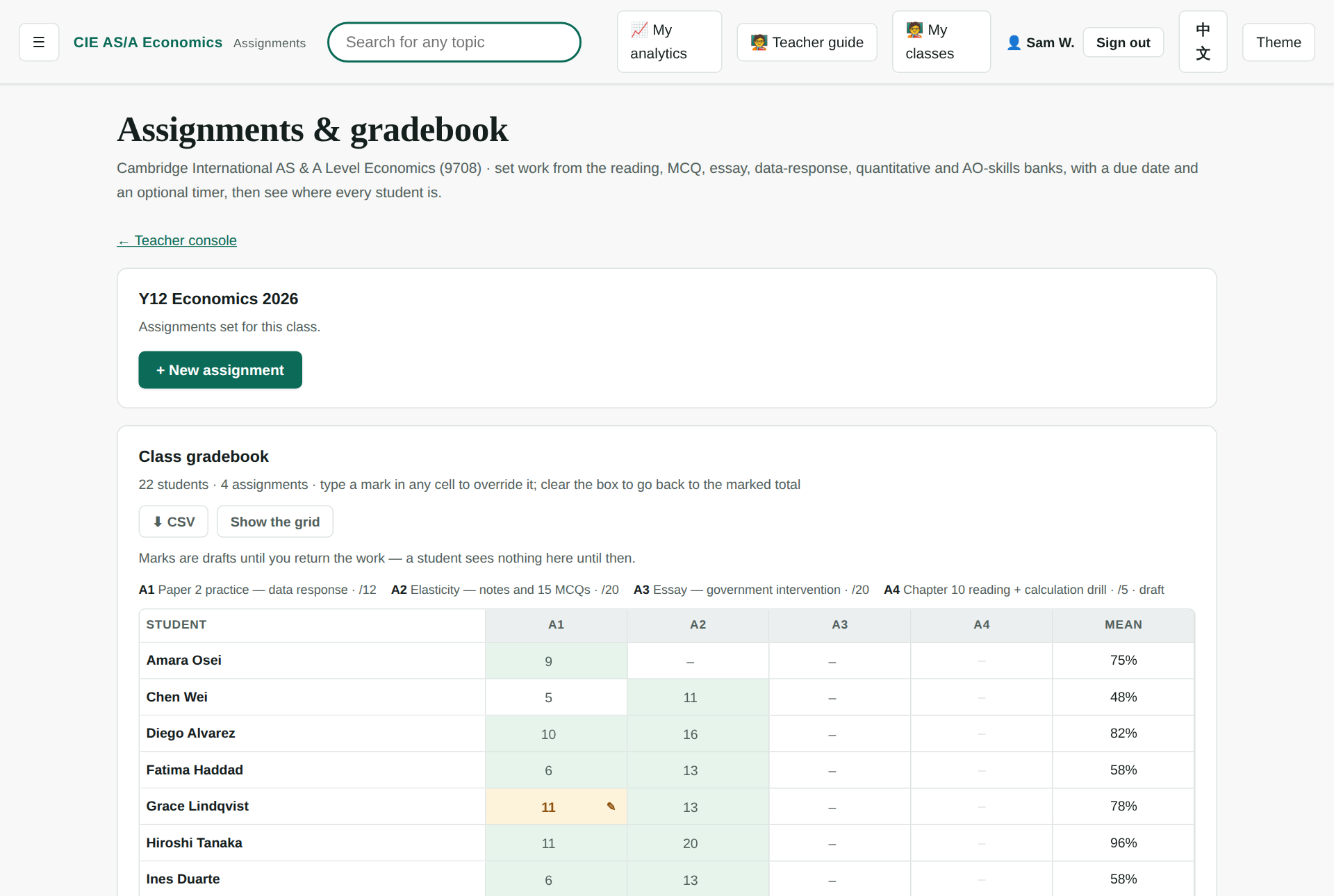
The class gradebook is a matrix — students down the side, assignments across the top. Every cell is editable: type a mark and it becomes that student's total for that assignment; clear the box and the marked total comes straight back. The per-question marks are never touched.
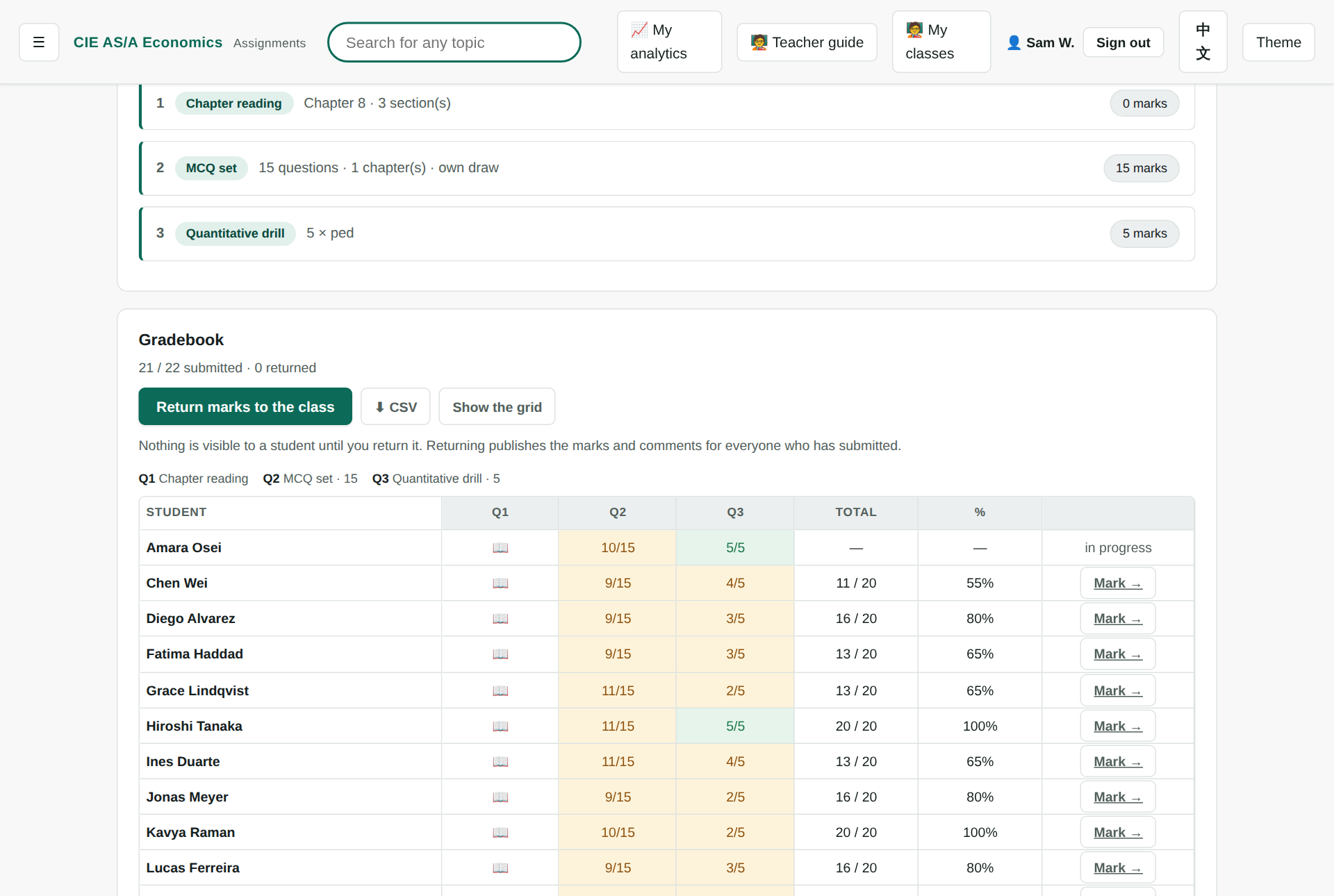
Open a single assignment and you get a students-by-questions grid, with a glyph or a number in every cell so colour is never the only signal, a percentage column, a class mean and a CSV export. On a narrow screen it falls back to a list.
Marking written work
Only multiple-choice questions are marked automatically, against the answer key. Everything else — essays, data-response answers, quantitative drills and AO drills — needs a mark from you in the marking view. Quantitative and AO drills have no server-checkable answer, so an item you never open scores zero.
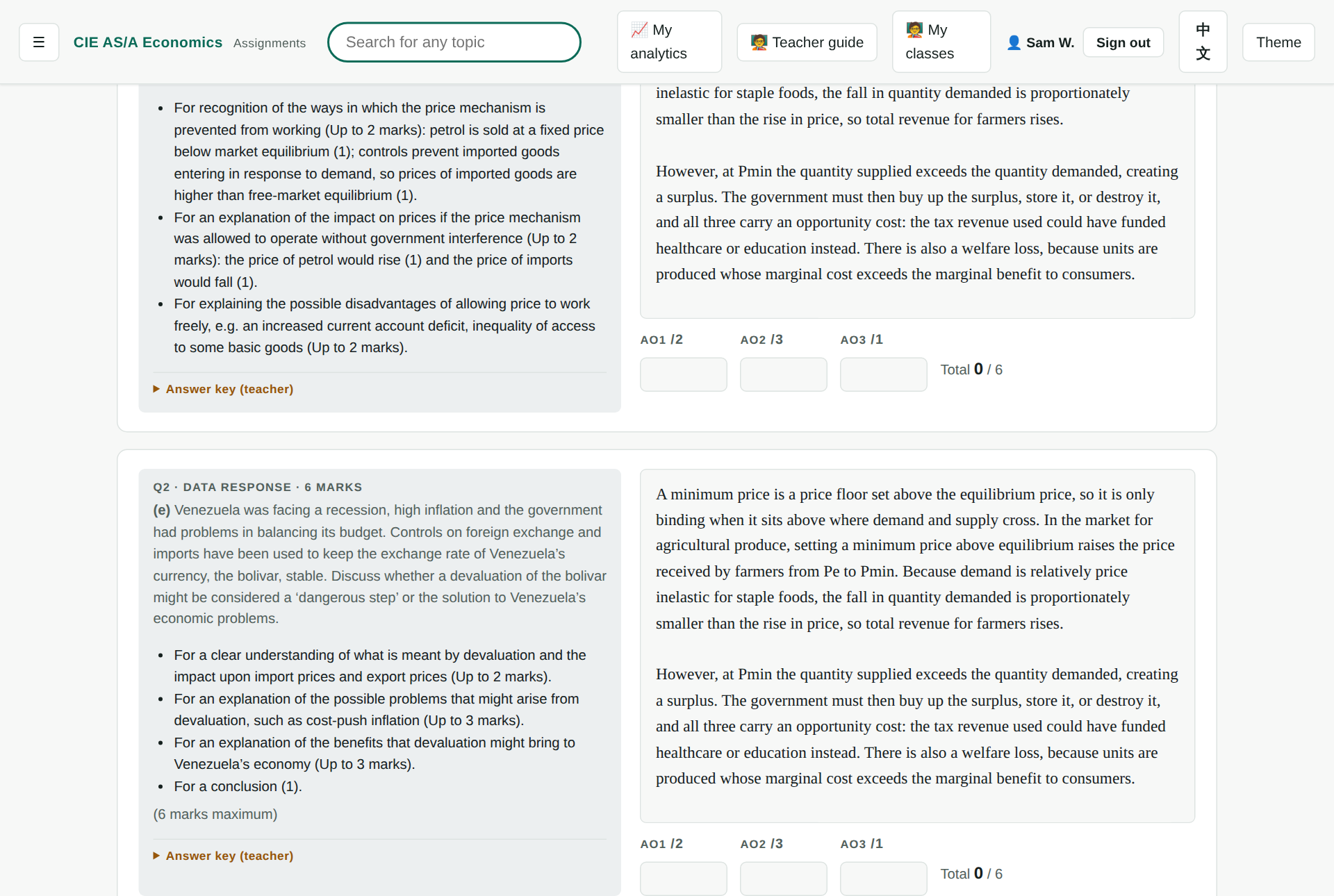
- The full official mark scheme sits beside the student's frozen answer — no need to open anything else.
- Per-objective (AO) rows are seeded from the scheme wherever it states a split.
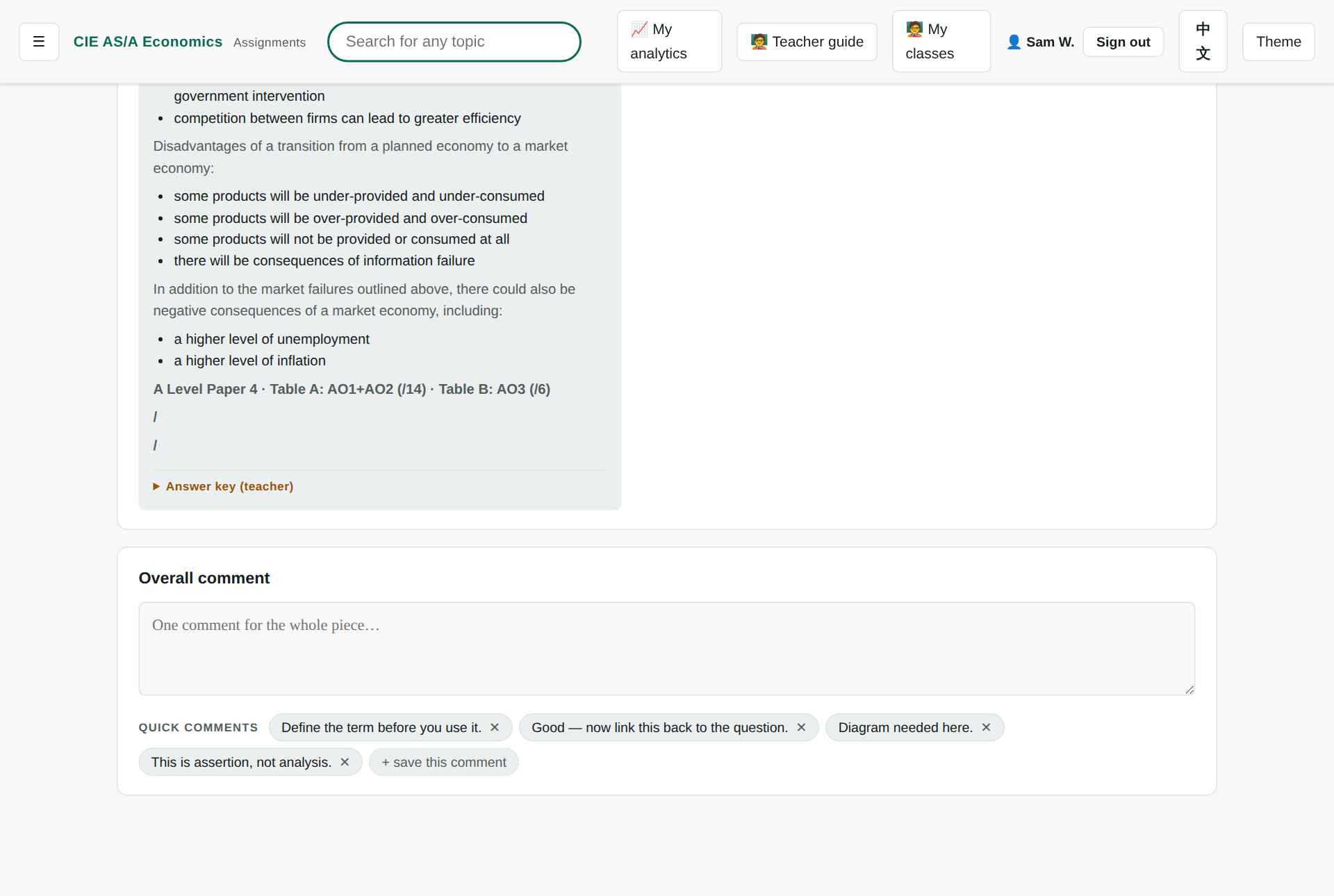
- Select any run of the answer to leave an inline comment; comments are stored as character offsets, so earlier ones never shift the later ones.
- Frequently used comments can be saved to a quick-comment bank and reused.
- J and K move through the marking queue. ⌘⏎ saves, returns that student's marks to them, and jumps to the next unmarked one — it publishes as it goes, so use Save marks while you are still deciding.
- MCQ and quantitative rows carry a marks box too — for MCQs it overrides the machine score, and for quantitative and auto AO drills it is the only way marks are ever awarded.
Marks are drafts until you return them
Saving publishes nothing. A student sees their marks and comments only after you press Return marks to the class, so you can mark across several sittings and release everything at once. The one exception is the ⌘⏎ shortcut in the marking view, which returns that student as it advances.
A final grade override panel sits above the questions for work done on paper, a resit, or a late penalty. It sets the student's total for the assignment without editing any per-question mark, and clearing it restores the marked total exactly.
The teacher answer keys
Every essay, and every data-response part worth two marks or more, carries a set of guided questions — answered in order, they produce the essay. (The one-mark parts have none: there is no plan to make of a lookup.) A teacher account also sees model answers to those questions. Students never do.
The keys appear in two places: collapsed beneath the official scheme in the marking view, and on a dedicated print sheet in the gradebook for taking a set of answers into a lesson.
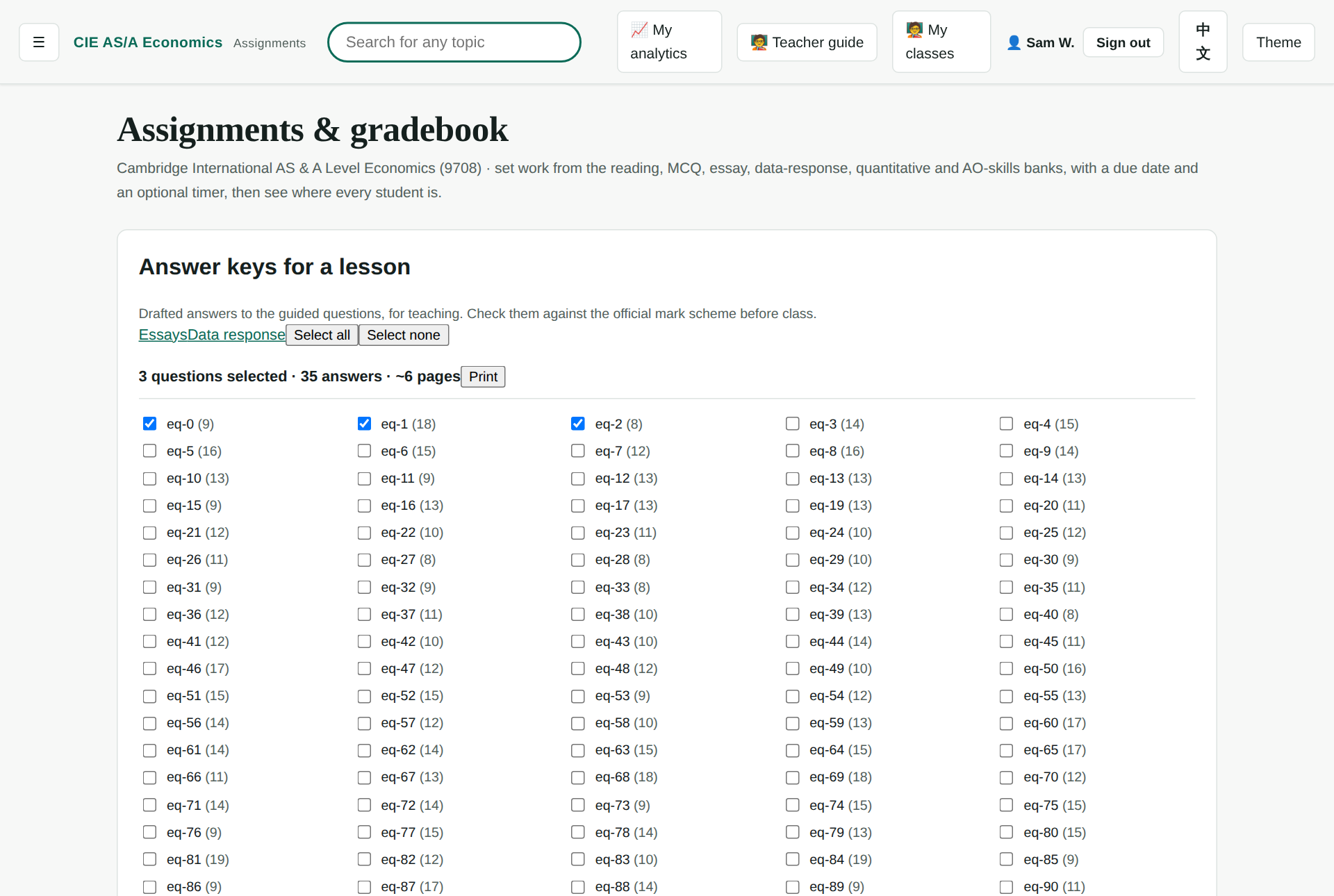
Check them before class
These answers are drafted teaching material, not a Cambridge document. The mark scheme is the official record; where the two differ, the scheme wins. The page says the same thing on the sheet itself.
Class analytics
Open a class and, below the roster, you get the class-wide picture: overall accuracy, the weakest units, and engagement over the last seven days.
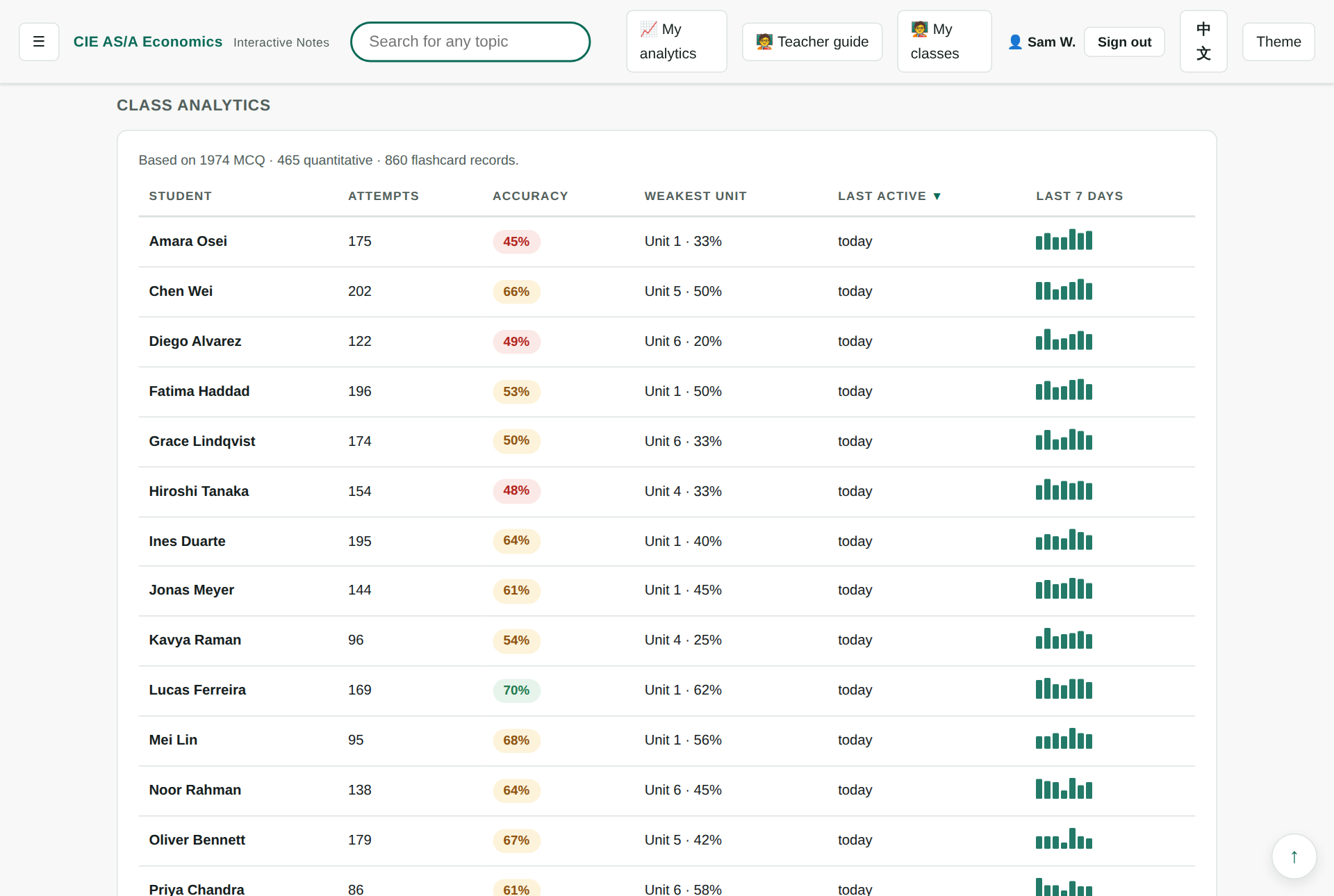
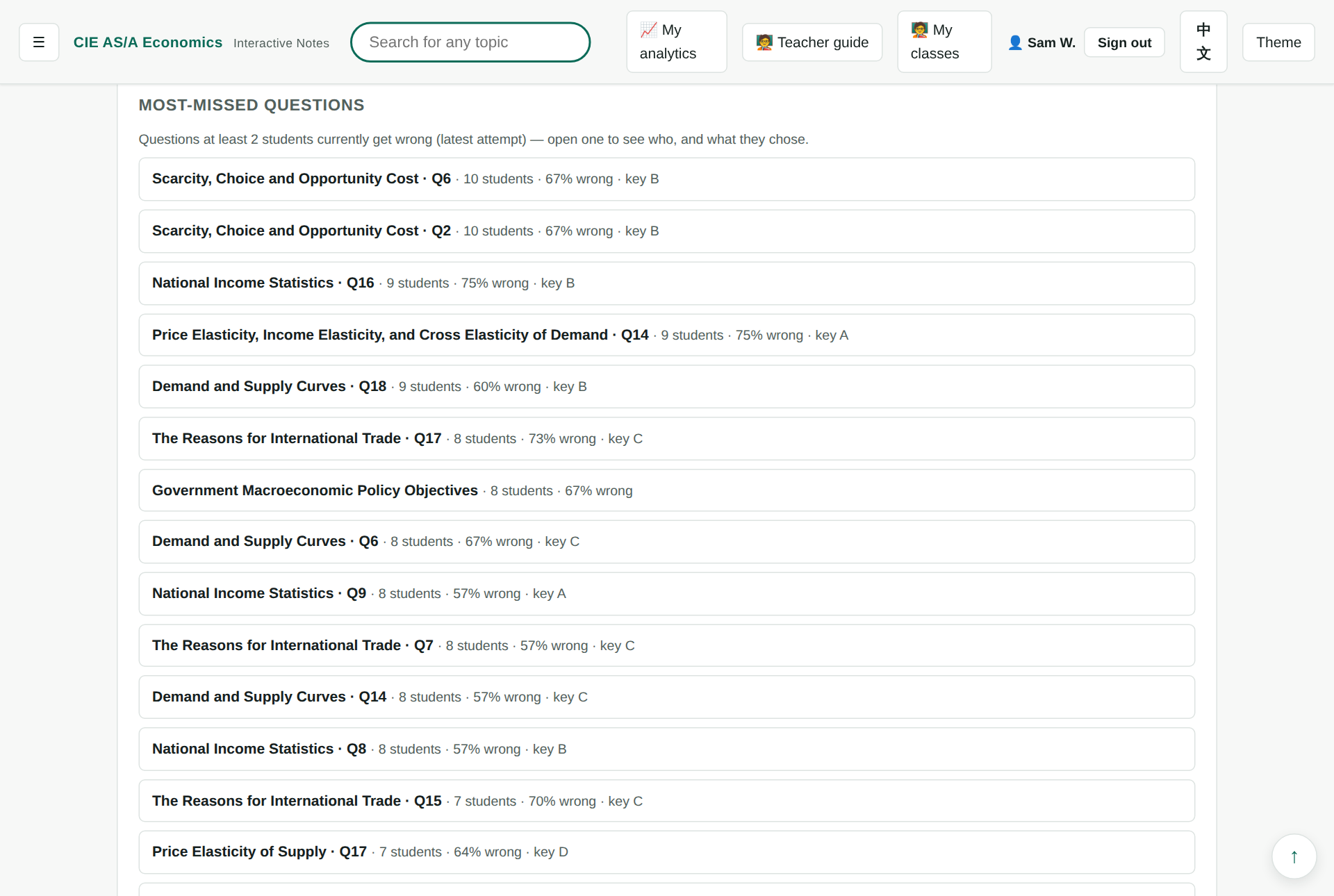
The most useful panel is most-missed questions: the questions at least two students still get wrong on their latest attempt. Expand one and you see who chose what, against the key. It reads as a ready-made list for the next lesson.
There is also a class notes by chapter panel showing where the class is annotating and how many questions nobody has answered yet.
Following one student
Any View analytics link in the roster opens that student's full analytics page — mastery by unit, first-attempt accuracy, timed sessions, flashcard retention, quantitative skills and the questions still to review. A banner at the top makes clear whose page you are looking at.
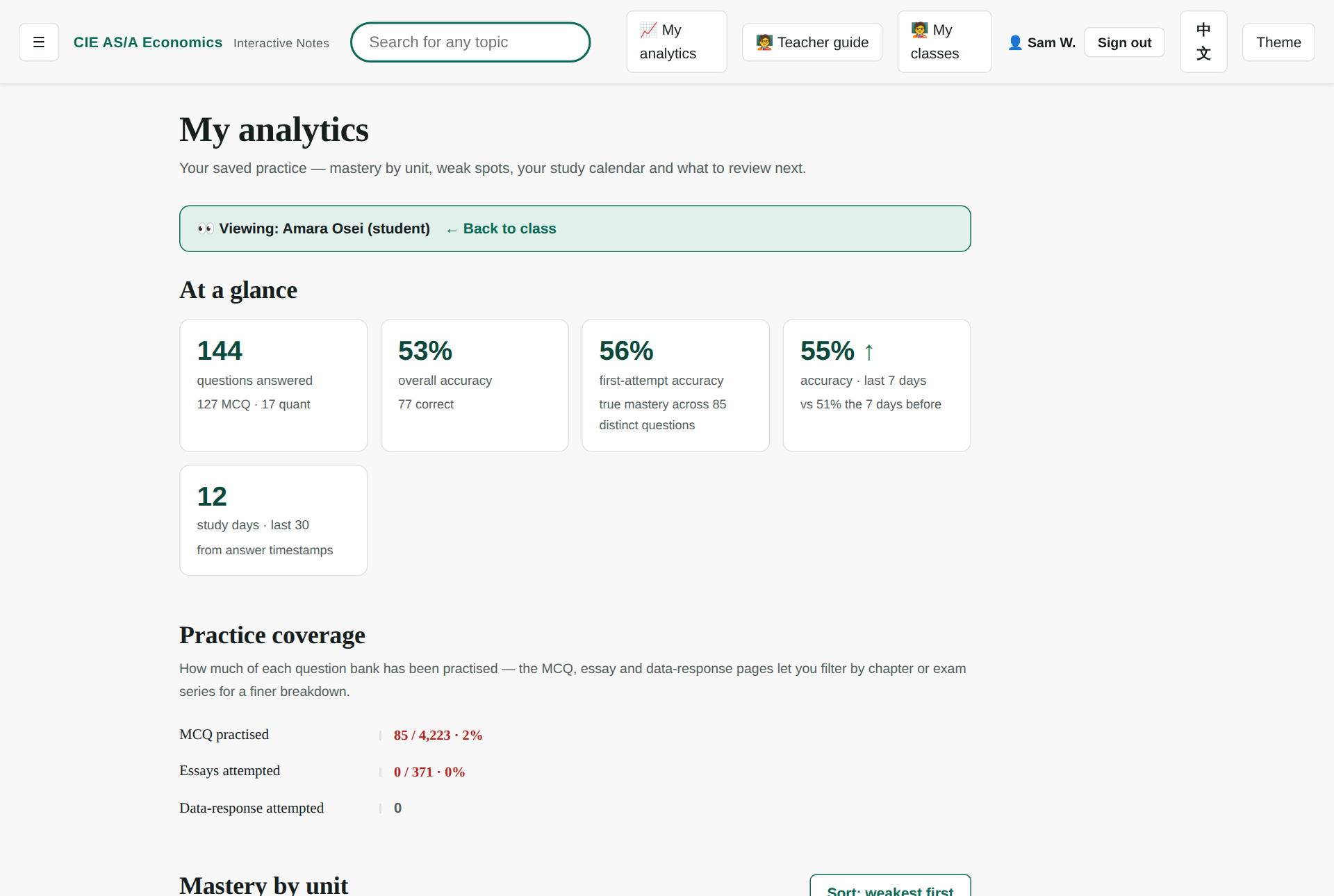
Those links carry through to read-only work: you can open the essay and data-response pages and read exactly what that student wrote, without being able to change it.
If you would rather work question by question than student by student, the essay and data-response pages also have a class responses mode that expands the whole class's answers under each prompt.
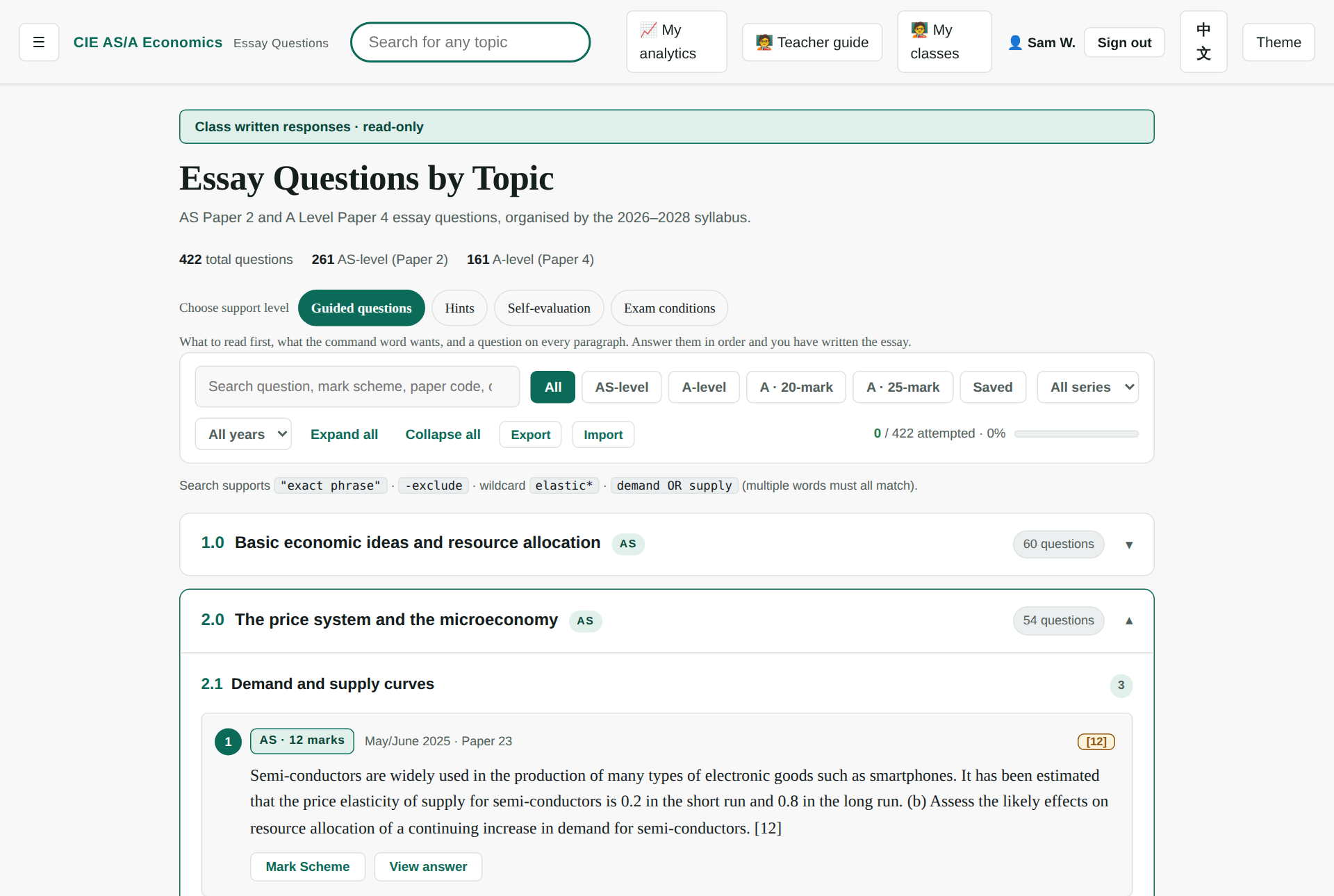
The teacher-only tools
These four tools are teacher-only as whole pages and have nothing to do with classes — they work whether or not you have created one.
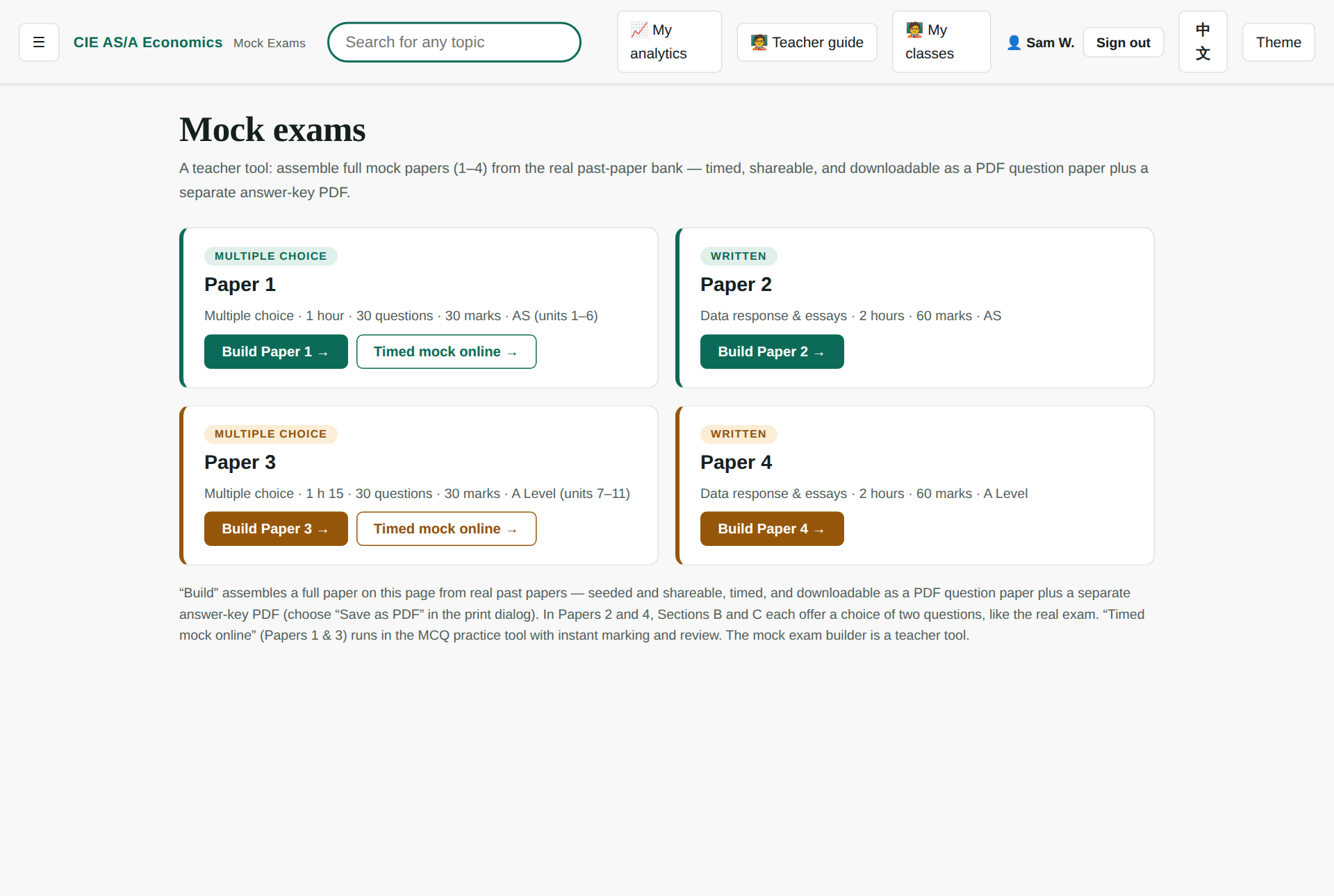
Mock exam papers
Every paper builds in-page from a seed. Papers 1 and 3 assemble a 30-question multiple-choice paper; Papers 2 and 4 assemble a full written paper with the real exam structure — a compulsory data-response Section A, then Sections B and C each offering a choice of two. They are timed, shareable by link, and download as two separate PDFs: the question paper and the answer key.
Worksheet builder
Deterministic question sets from the MCQ bank, printable as a worksheet with a separate answer key, or shareable as a link the class answers online. The set is encoded in the link, so the same link always gives the same questions.
AO skills drills
One objective at a time. The auto-marked widgets — select the better answer, reorder a chain, match a term, classify, complete a link, spot the error — give instant feedback, and the first attempt is what counts for mastery. Open drills reveal the model answer only after submitting. There is also a worksheet mode: tick the drills you want, then print a worksheet or an answer key, or copy a link to project in class.
Quantitative skills
Ten generators — the elasticities, costs and revenue, the multiplier, exchange rates, index numbers, labour rates, comparative advantage and terms of trade — with randomised numbers and a bilingual step-by-step solution for every question.
Class notes on the chapters
While reading, a student can select any sentence in the notes and attach a comment or a question. Selecting text puts two buttons under the selection — Highlight, which is personal and stays on that student's own device, and Class note. The note appears beside the prose, anchored to the sentence they picked.
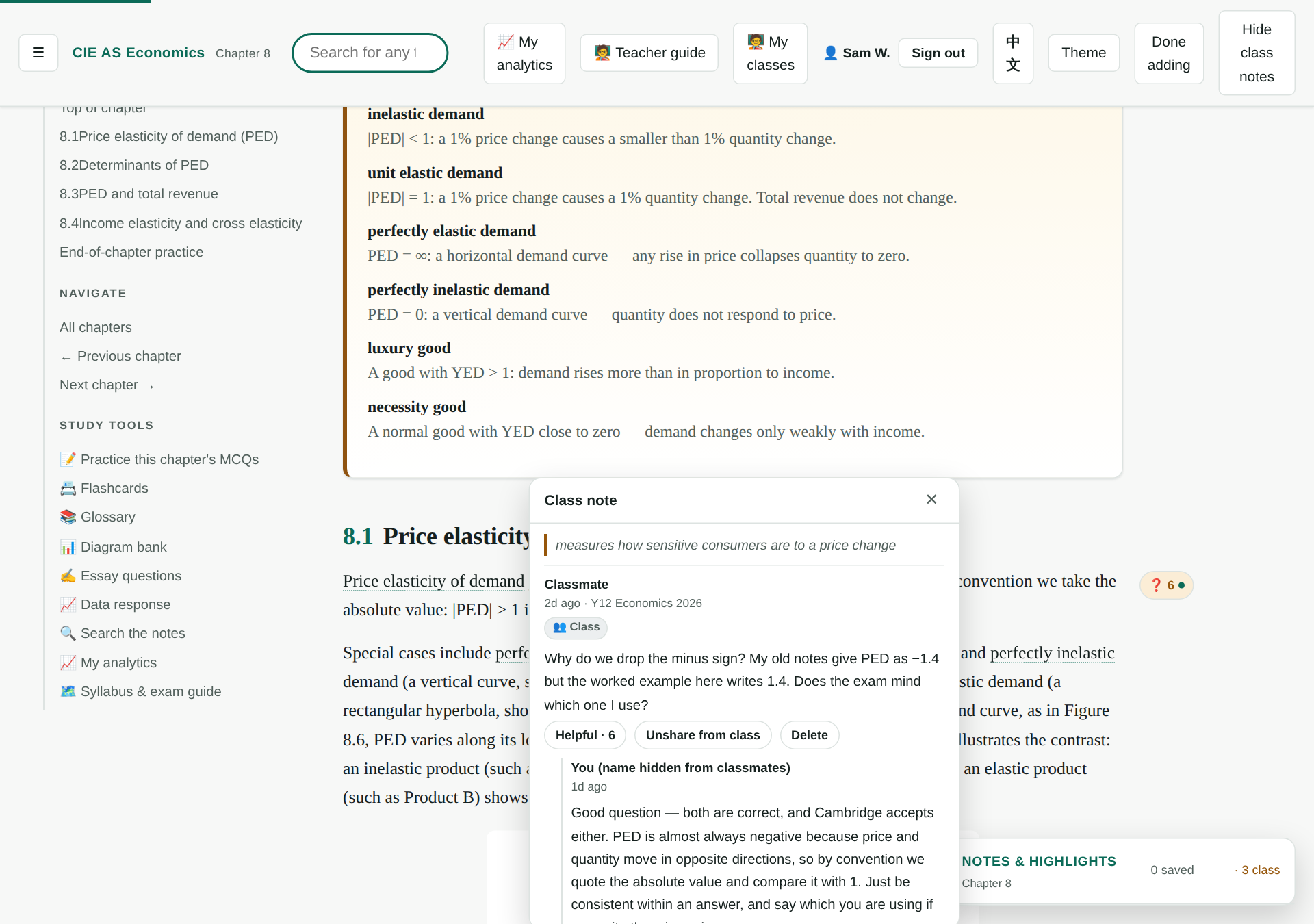
Every note sits on one of three rungs, and the student chooses:
- 🔒 Private — only the author. This is the default, and you cannot see it either.
- ✋ Ask my teacher — the student shares it with you. It joins your queue; classmates still cannot see it.
- 👥 Whole class — only you, as the class owner, can put a note in front of classmates, using Share with class on the note. A student cannot do this themselves.
A published note carries no name: classmates see “Classmate” and an hour-rounded timestamp. You see the real name. Your own notes are always attributed to you.
When a student sends you a note, a 🔔 appears in the top bar; opening it takes you straight to the passage the note hangs off. Students get the same notification when you reply. Answering is what clears an item from your list — there is no separate "mark as read" to keep in step.
A Hide class notes toggle empties the margin for teaching or projecting, and if you teach more than one class a picker in the notes panel narrows the margin to a single class.
What you can and cannot see
The line is drawn deliberately, and it is worth knowing before you introduce the site to a class.
You can see — for students in your class
- Their MCQ, quantitative and flashcard attempts, and the analytics built from them.
- Their essay, data-response and AO-drill answers and self-assessments.
- Everything they submit for an assignment, and all of your marking on it.
- Notes they shared with you, and notes published to the class.
- Their progress through an assignment — when they started, when they submitted, and which questions they answered. For a chapter reading, which sections they finished, how long the page was open, and when they last read it.
You cannot see
- Their personal chapter notes and highlights. Those belong to the student and are not teacher-readable at all.
- Any annotation a student has kept private — even though you are their teacher.
- Anything at all about a student who is not on your roster.
- Their password. Resets go to the student by email.
Students can see everything held about them, export it, or delete their account outright from their own account settings page.
Bilingual, themes and printing
- The whole site is bilingual. The 中文 / EN button at the top right switches all 53 chapters, the 522 key terms, the explanations for all 4,223 MCQs and every teacher screen. Your choice is remembered.
- Six themes (light, dark, sepia, high-contrast, classic and true black). The high-contrast theme is the one for a projector.
- Chapter pages have a presentation mode that enlarges the prose and hides the surrounding chrome, plus A− / A+ for text size.
- Everything meant for paper — worksheets, mock papers, answer keys, the teacher keys — prints through the browser's own print dialogue, so Save as PDF is how you get a file. Printing always uses paper-friendly colours, whatever theme you are in.
Sending feedback
The site is still being built, and feedback from teachers is the most useful kind there is. Whether you have found a mistake, hit something awkward, or want a feature that is not there, please write.
Email:
These are especially worth reporting:
- Something is wrong. An explanation, a mark scheme or an answer key that does not stand up as economics. The question reference (for example eq-142, or the chapter and question number) is what makes it findable.
- A translation reads badly. A term rendered inaccurately or unnaturally in Chinese.
- Something does not work. Which page, which browser, and what you were doing at the time.
- Something is missing. The thing you wanted to do in a lesson and could not.
- How it actually went. Which parts your class used, and which they ignored.
The same address handles teacher-account requests, including for colleagues.
This is a free, unofficial Cambridge 9708 Economics revision resource and is not affiliated with Cambridge Assessment International Education. The class, join code, student names and marks in the screenshots are demonstration data, not a real account.